
CHARGES, CANCELLATIONS, AND RESOLUTIONS
This procedure is established for activities related to Charges, cancellations, and resolutions. For this purpose, the company processes charges and receives payments from the platforms, arising from findings prior to the reservations that stay in our units.
Last Update: April 2026
Revised by: Johanna García
Objetive
- Ensure proper management of charges associated with each reservation.
- Ensure cancellations are processed according to established policies.
- Resolve any financial discrepancies or incidents in a timely manner.
- Verify that payments received from platforms are accurate and complete.
- Minimize financial losses by tracking pending charges and disputes.
- Maintain effective communication with platforms for case resolution.
- Optimize response times in handling charges, cancellations, and resolutions.
- Ensure proper traceability and documentation of each action taken.
- Comply with internal guidelines and quality standards in financial processes.
In the CRM, this process is recorded as #Damage
Situation Map

What is a situation
- A situation is any deviation in proper service that is noticed by a guest and may or may not be communicated to us by the guest. A situation can be classified as serious (requiring priority attention) if it prevents the guest from comfortably completing their stay.
No situation should be dismissed, and they should be resolved as quickly as possible from the time of notification.
Procedure Line
-
✅Charges for Airbnb- Booking
Step 1
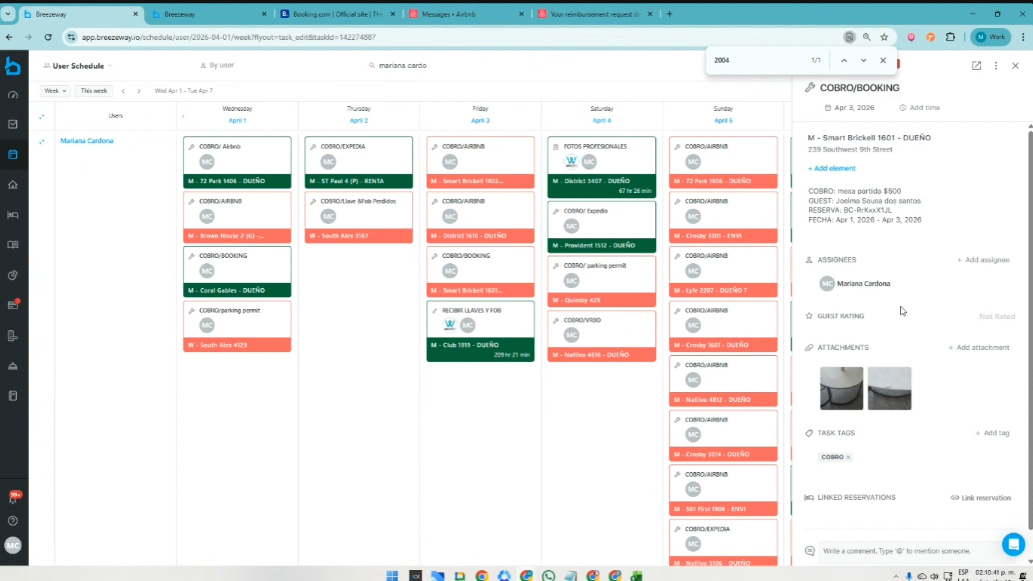
Go to Breezeway / Calendar / User
Each zone will have the charges to be made assigned to its user. Using the search icon, each one will appear:
Only amounts greater than or equal to $300 USD will be charged.
When there is a charge below this amount, a note is added in Breezeway and the ticket is closed.


When you click on the charge, a panel opens on the right side displaying the basic charge details.

Step 2
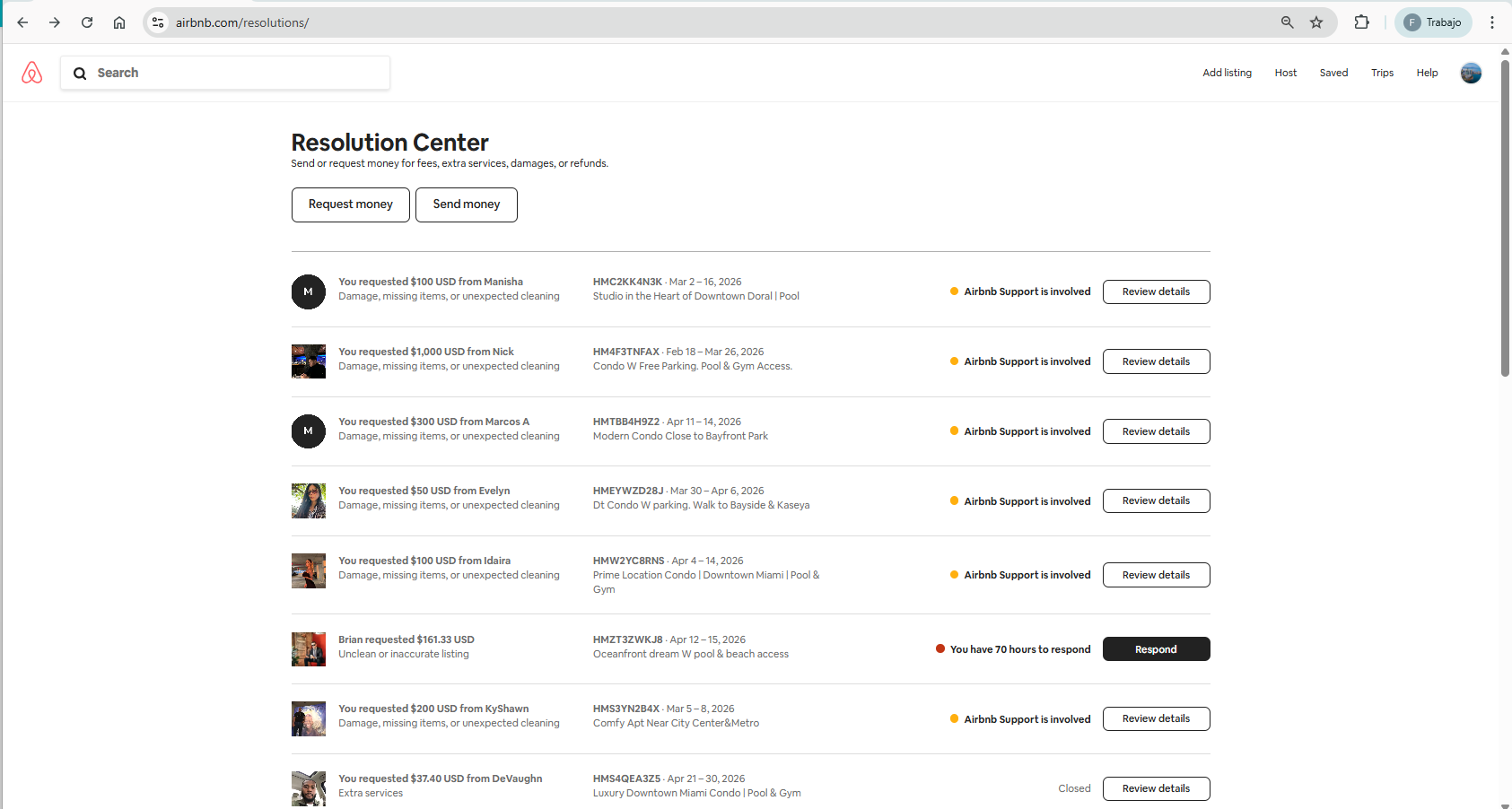
a. The next tool to carry out the process is the Airbnb Resolution Center.
https://www.airbnb.com/resolutions/

b. On the platform, the money is requested using the “Request Money” option, and you follow the step-by-step process to submit claims to guests for damages reported by the Maintenance and Cleaning team. Like this:
Request Money

c. Enter the reservation code.

d. Select the option: Damage, missing items, or unexpected cleaning.
Keep in mind that this charge can only be submitted up to 15 days after the guest’s check-out.


e. In this section, select “No” indicating that we do not require a security deposit, and proceed with the process by providing the context of what happened with the guest and the reason why the charge is being submitted to the system.
Next, select the item for which the charge is being made:

f. Next, the relevant case information is entered, including the evidence that the team has uploaded in Breezeway regarding the damage.
Important: It is asked whether it can be repaired, and the answer is NO.
Important: The age of the item is asked. It should always be marked as “Less than one year.

g. In the invoice section, the Excel file with the provided templates is used.

h. At this point, it is important to find the same item being sold online, which the resolutions team will use to verify the item’s current market value.

i. After attaching the item, click “Next.

j. Next, the system asks when the incident occurred, and the guest’s check-out date is selected.

k. And the charge is now submitted in the Airbnb system.

L. Once the process is completed, the guest has 24 hours to respond.

m. If after 24 hours the guest has not responded, Airbnb must be involved so they can step into the process, as in the following example:

Step 3
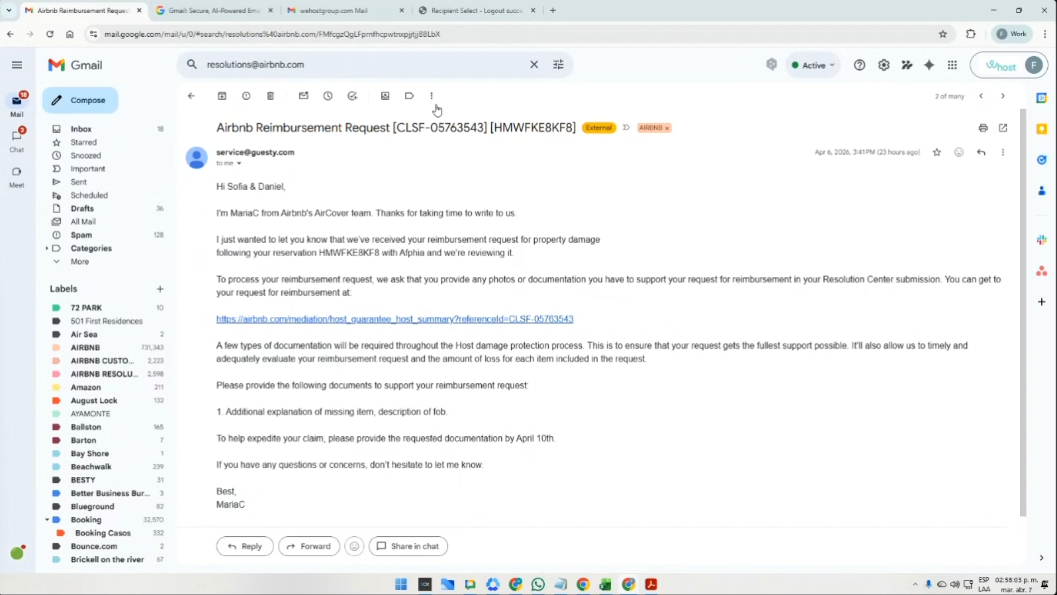
After 5 days, an email will be sent regarding the payment of those escalations, or notifications about any clarifications required by the platform, with the label: airbnb-resolutions

It is important to stay attentive to the email inbox in order to comply with the required process and complete the resolution of the case.
Step 4
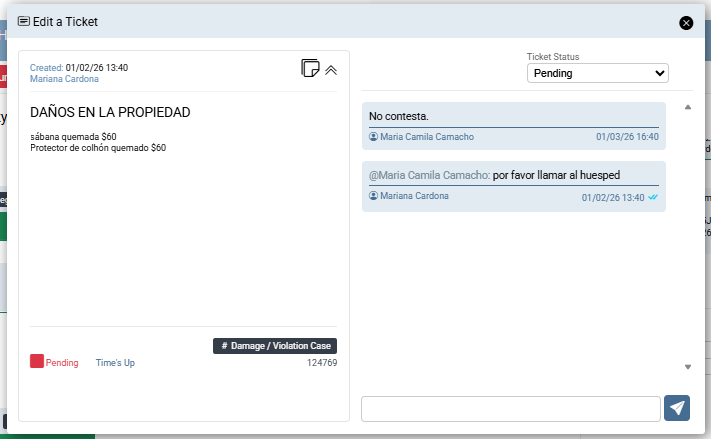
It is important to create a Note ticket in order to have visibility of the follow-up in the CRM, within the reservation to which the charge corresponds.
Step 5
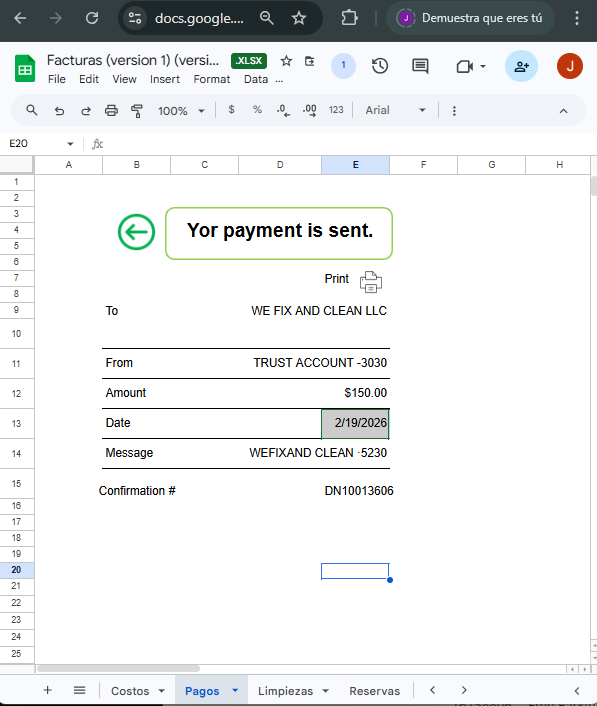
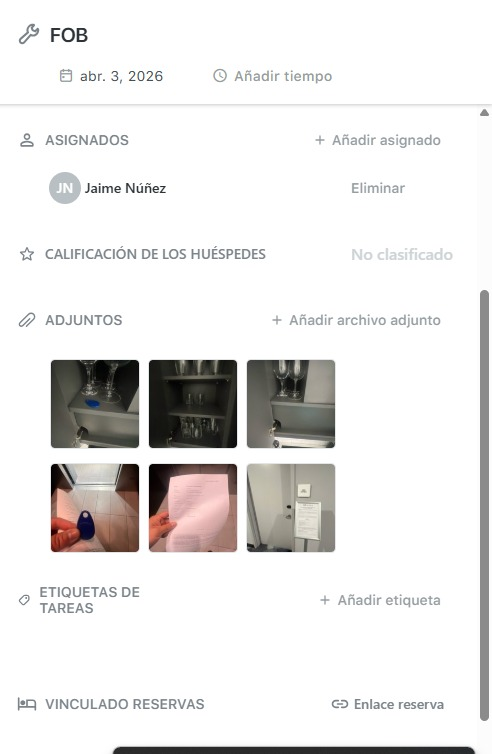
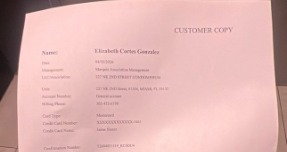
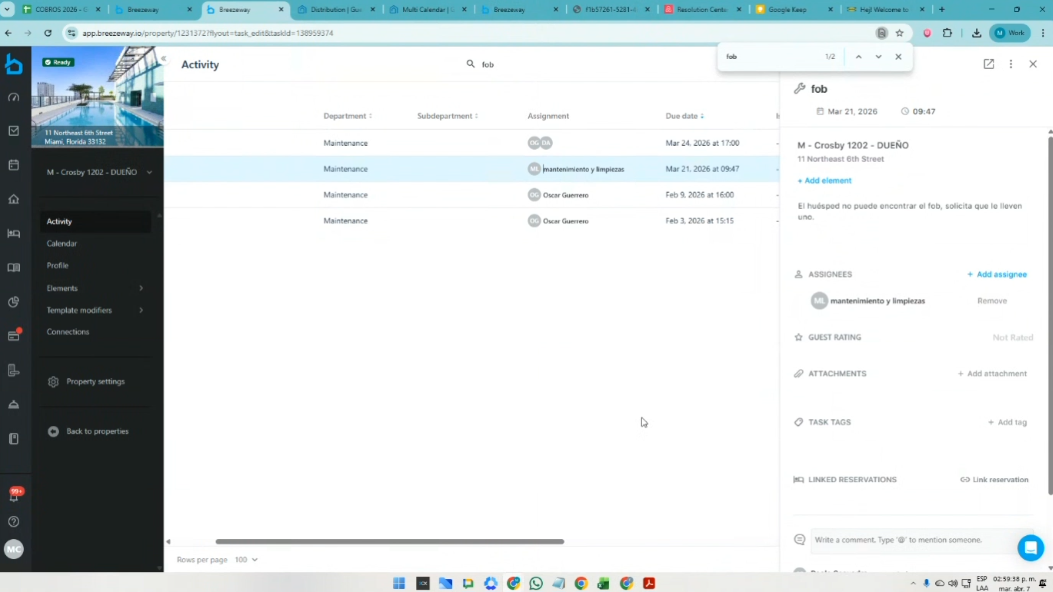
In case the platform requests further clarifications, it is possible to use this format provided in the shared Excel file or a screenshot of the same case in Breezeway.
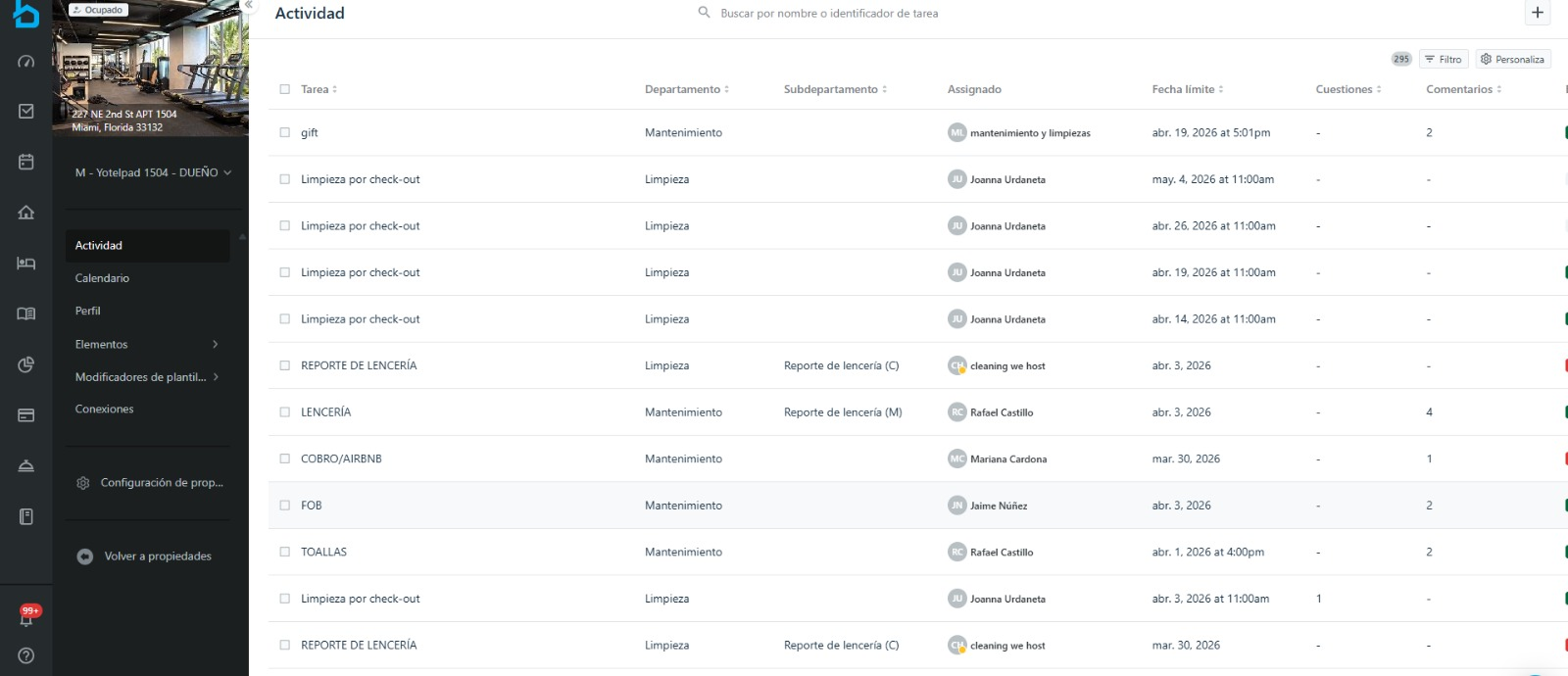
Breezeway: Search for the word FOB.
Step 6
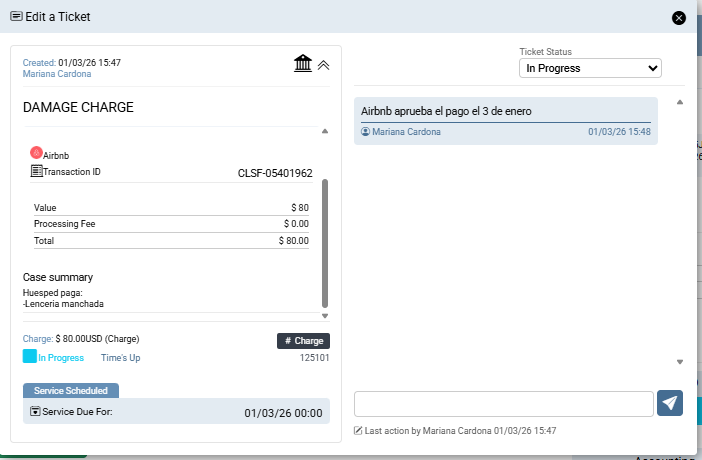
And once the payment has been processed, a Charge ticket must be created in the CRM, under the reservation to which that payment corresponds.
2. ✅Cancellations Airbnb
Through the Airbnb profile: Info, the penalties can be viewed:
https://www.airbnb.com/hosting
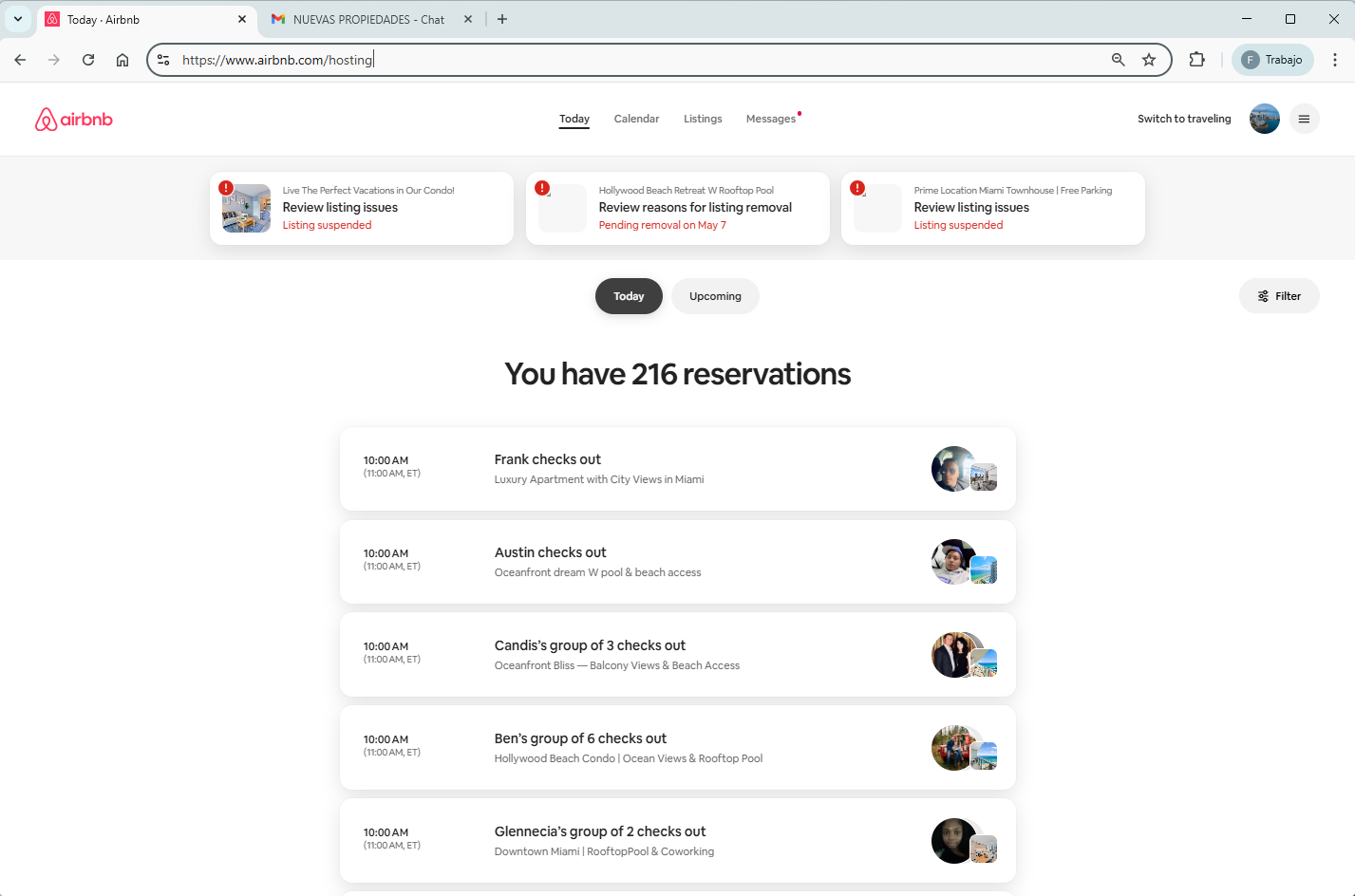
At the bottom, click on “See all reservations".
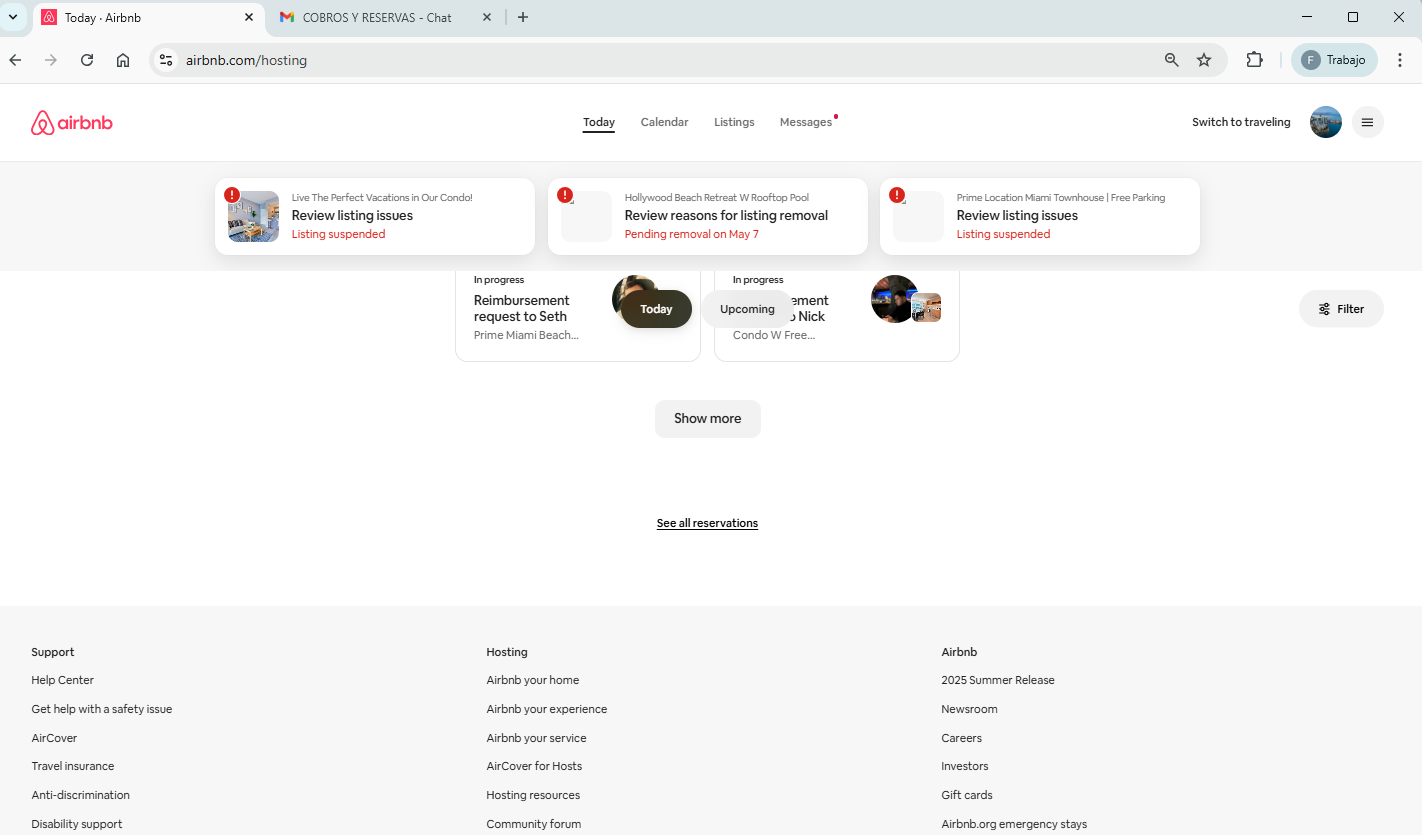
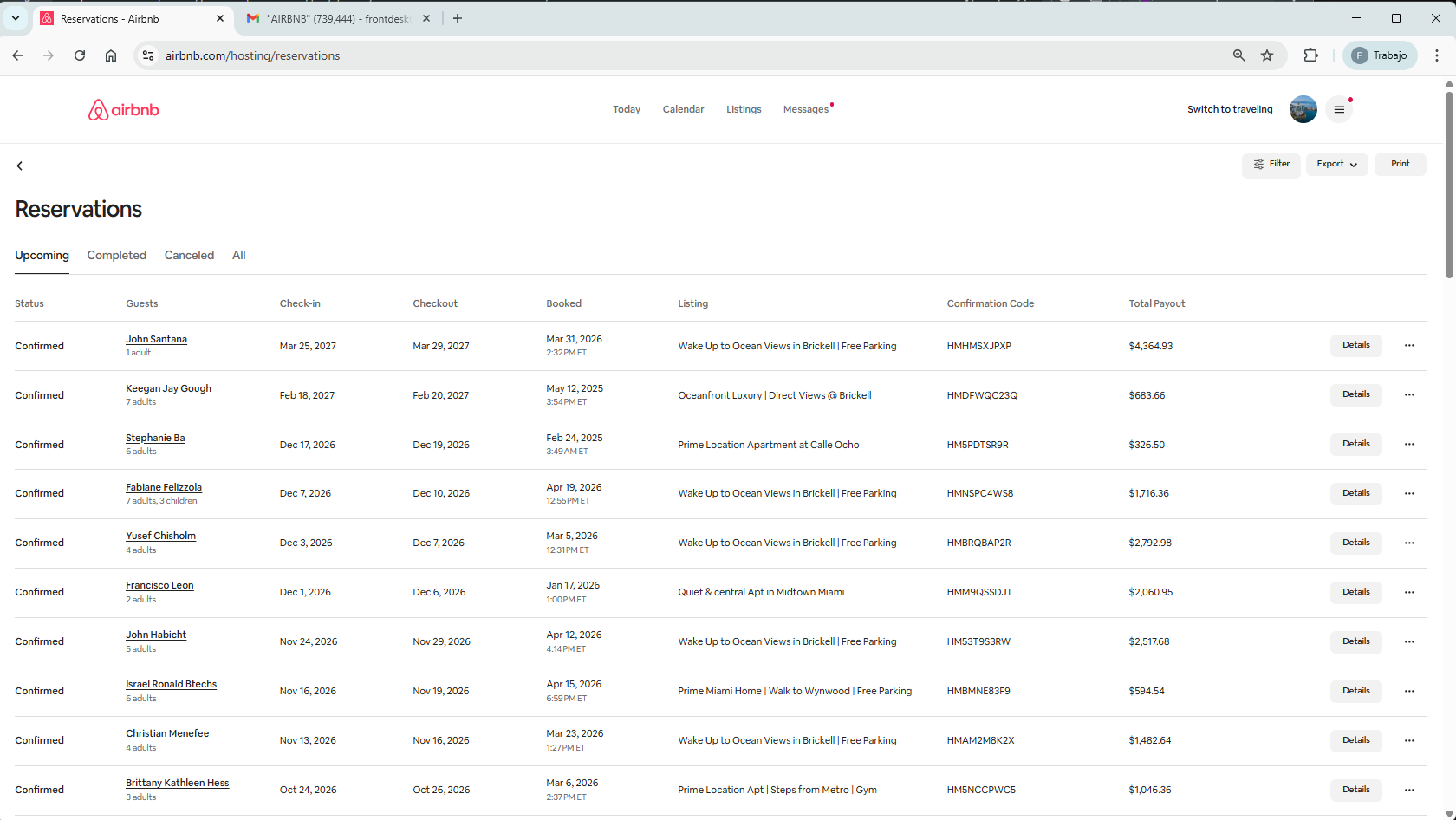
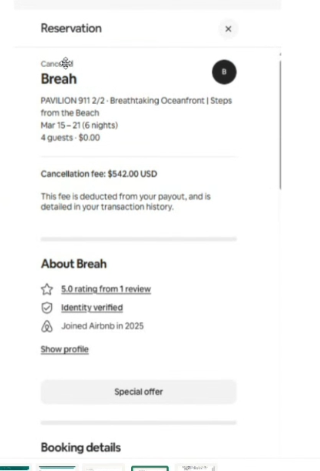
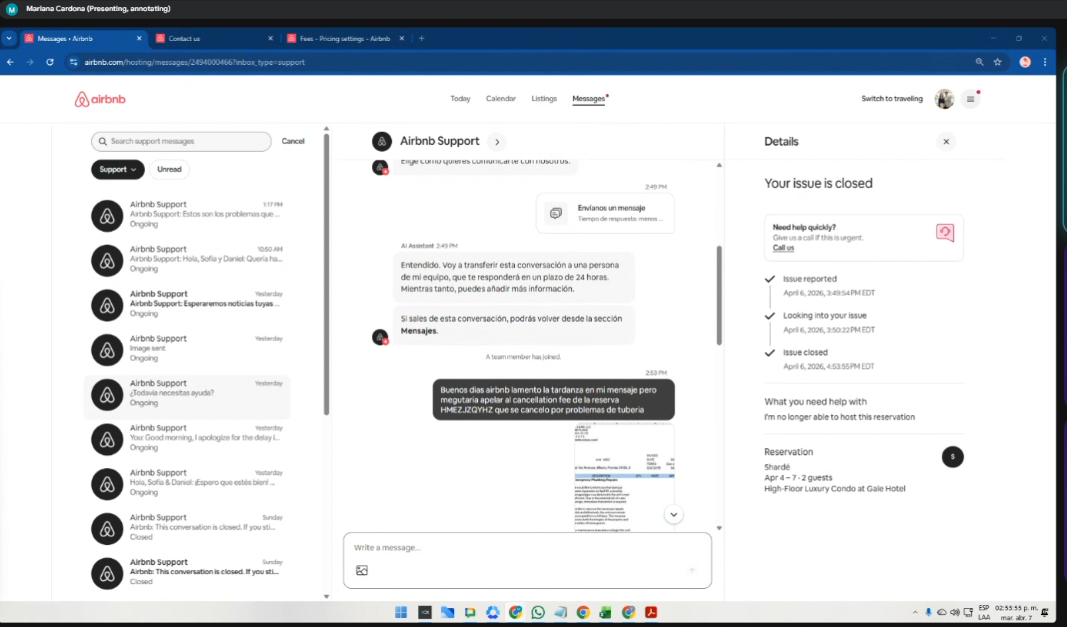
It is processed through the chat by informing the platform of what happened. They will remove cancellation penalties or any unjustified charges.
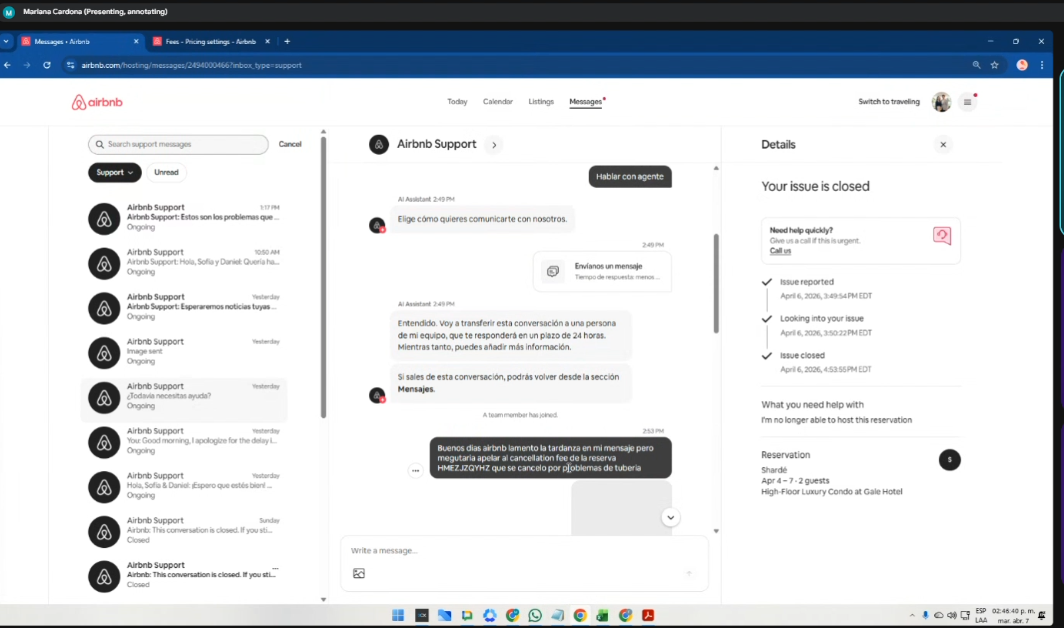
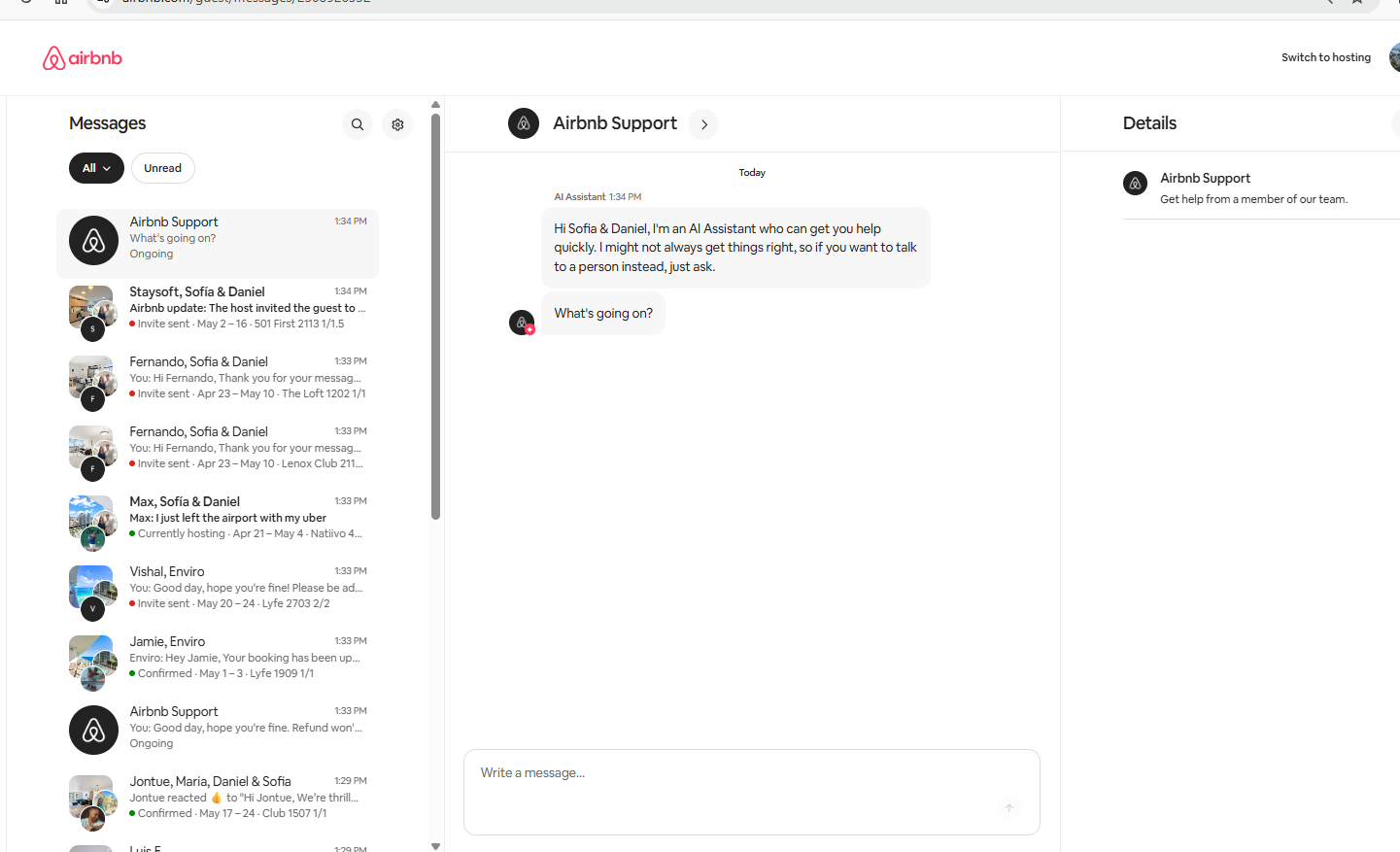
To open a NEW CASE, go through the Airbnb profile / Support.
https://www.airbnb.com/hosting/messages/2508902366?unread=
Message/ ALL / Support: https://www.airbnb.com/hosting/messages/2508912638?inbox_type=support
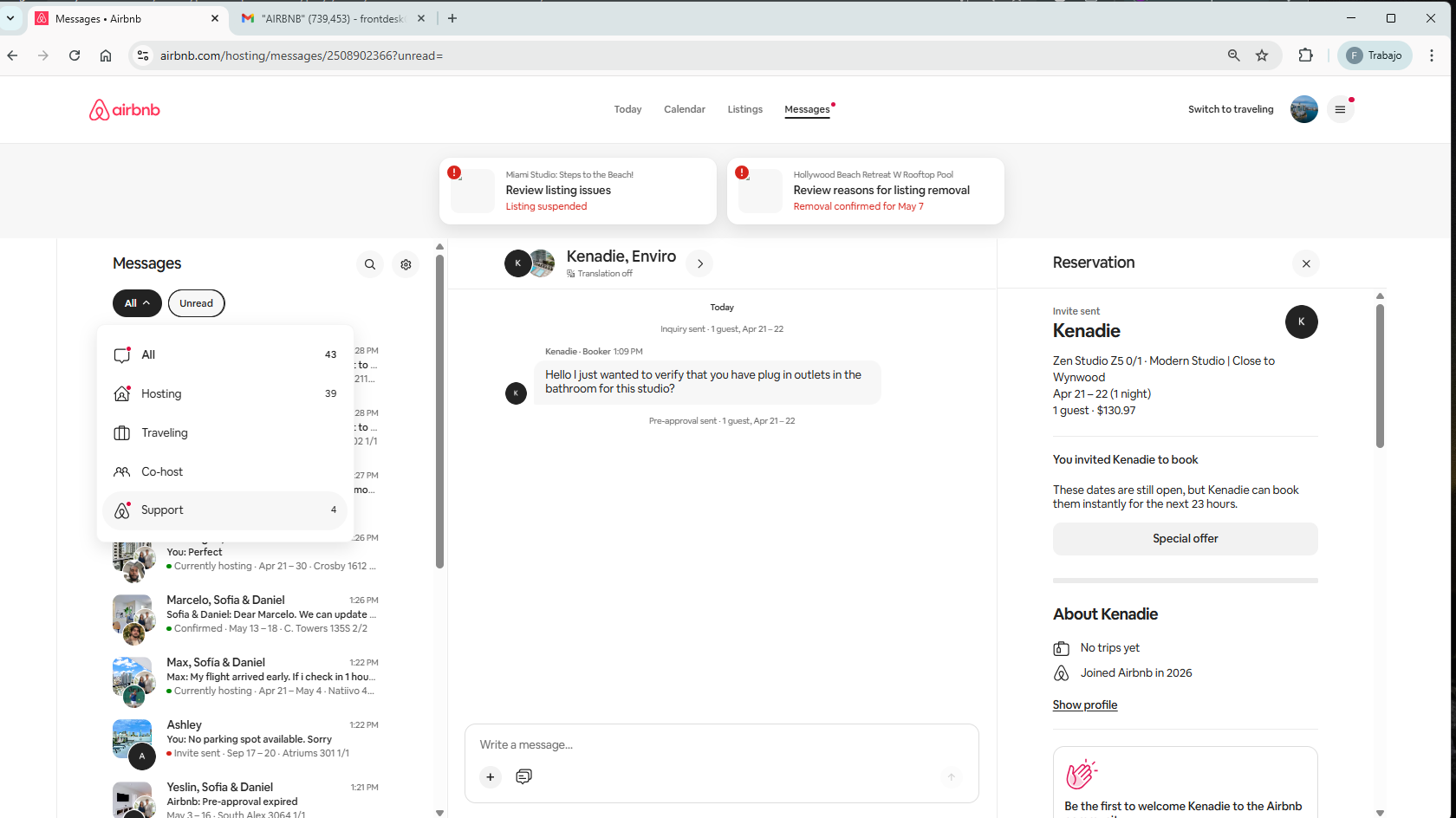
When searching for a case that is already “Closed,” there is a “Contact Us” notice at the bottom. Click on it.
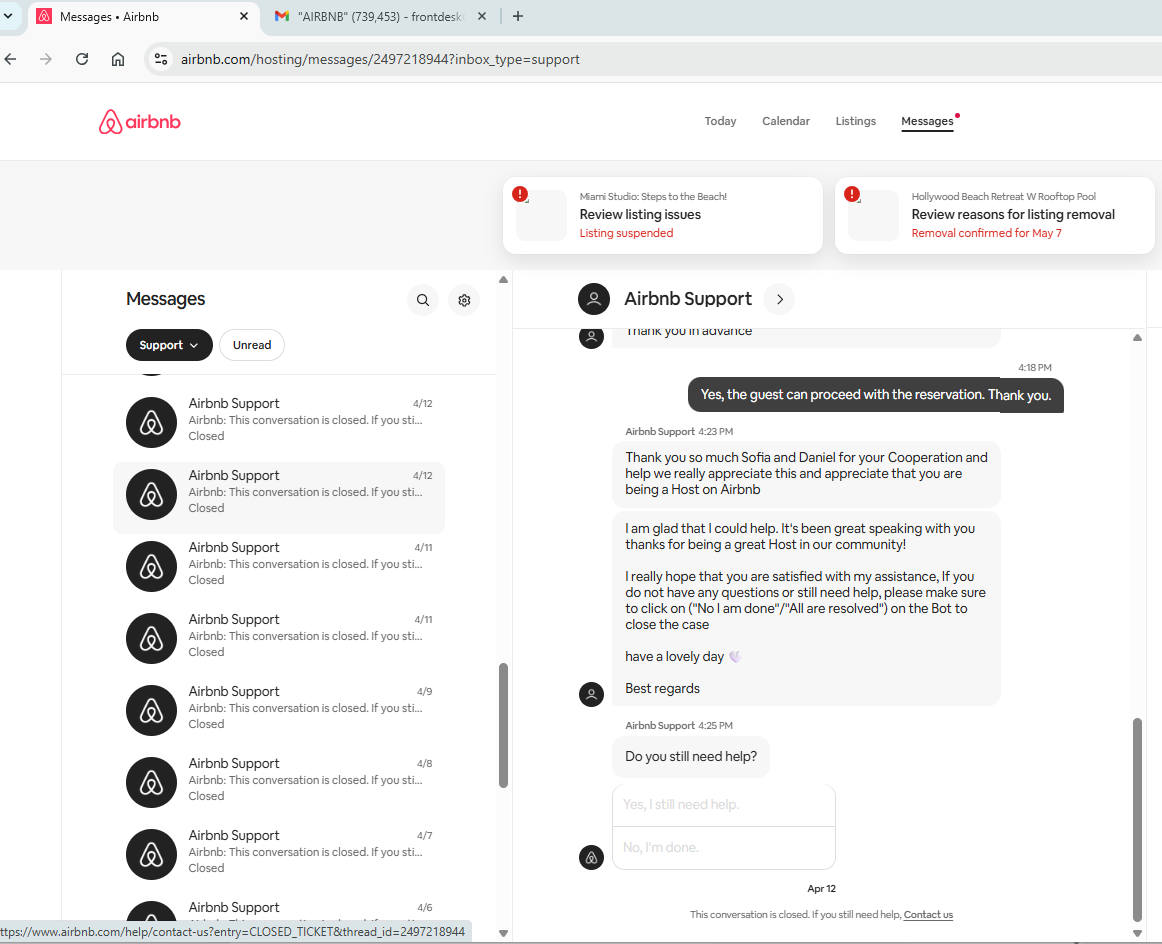

And from there, the escalation process can be initiated accordingly.
3. ✅Resoluciones Airbnb
La labor se ejecuta desde Resolution Center
Importante crear el ticket de Nota, para tener la visual del seguimiento en el CRM, en la reserva a la que corresponda dicho cobro.
Paso 5
Y cuando se haya hecho efectivo el pago, se debe crear el ticket de Charge en el CRM, en la reserva a la que corresponda dicho pago.
🔴4. Chargueback
5.✅ Resolusiones Booking
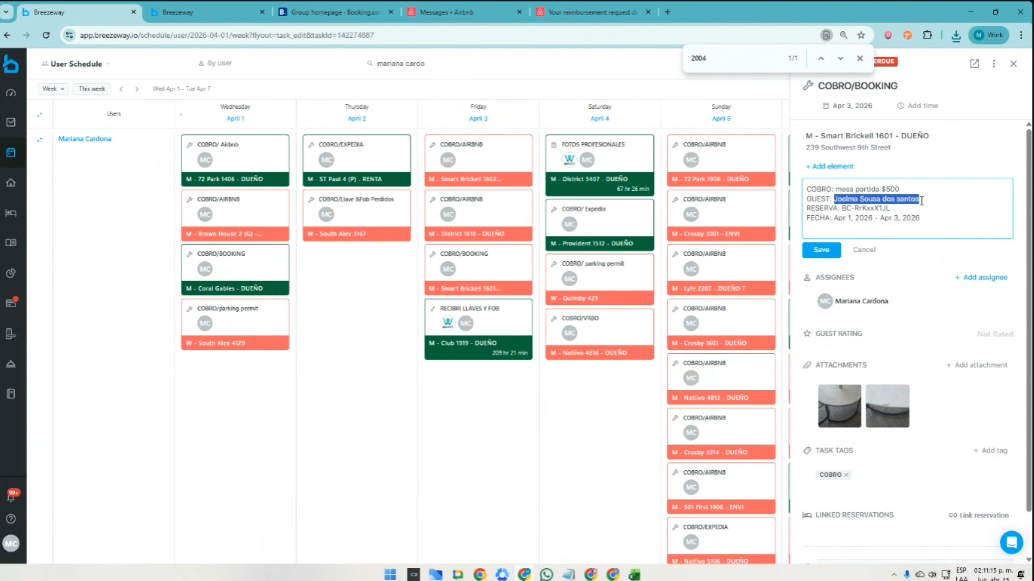
Los cobros por Booking, se visualizan en la plataforma Breezeway
Se ingresa a Booking
Usuario: CarlosRuizWeHost
Password; BookWH26_$$$
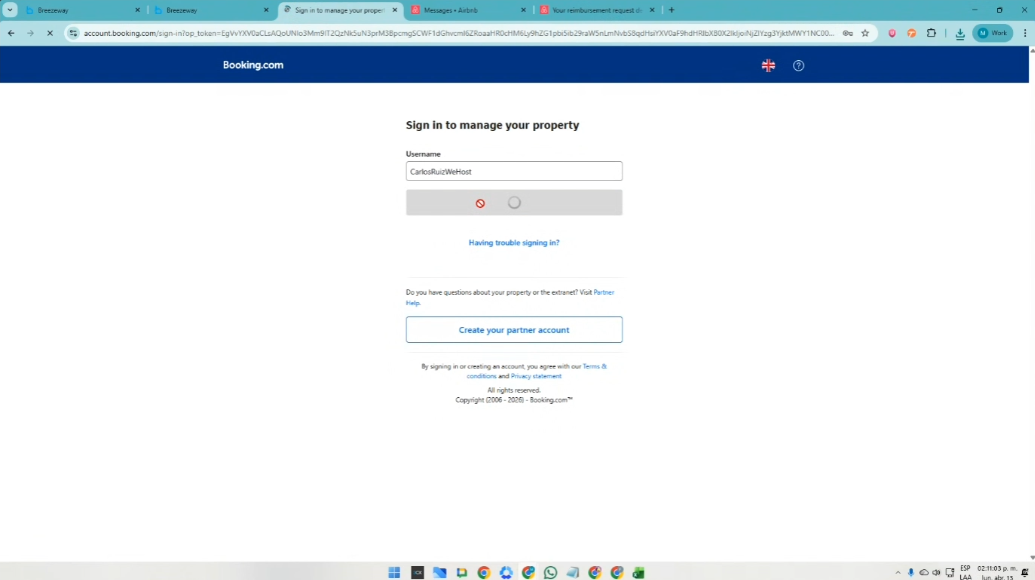
Se verifica a través del correo electrónico y se ingresa con el código que llega al correo del Front desk
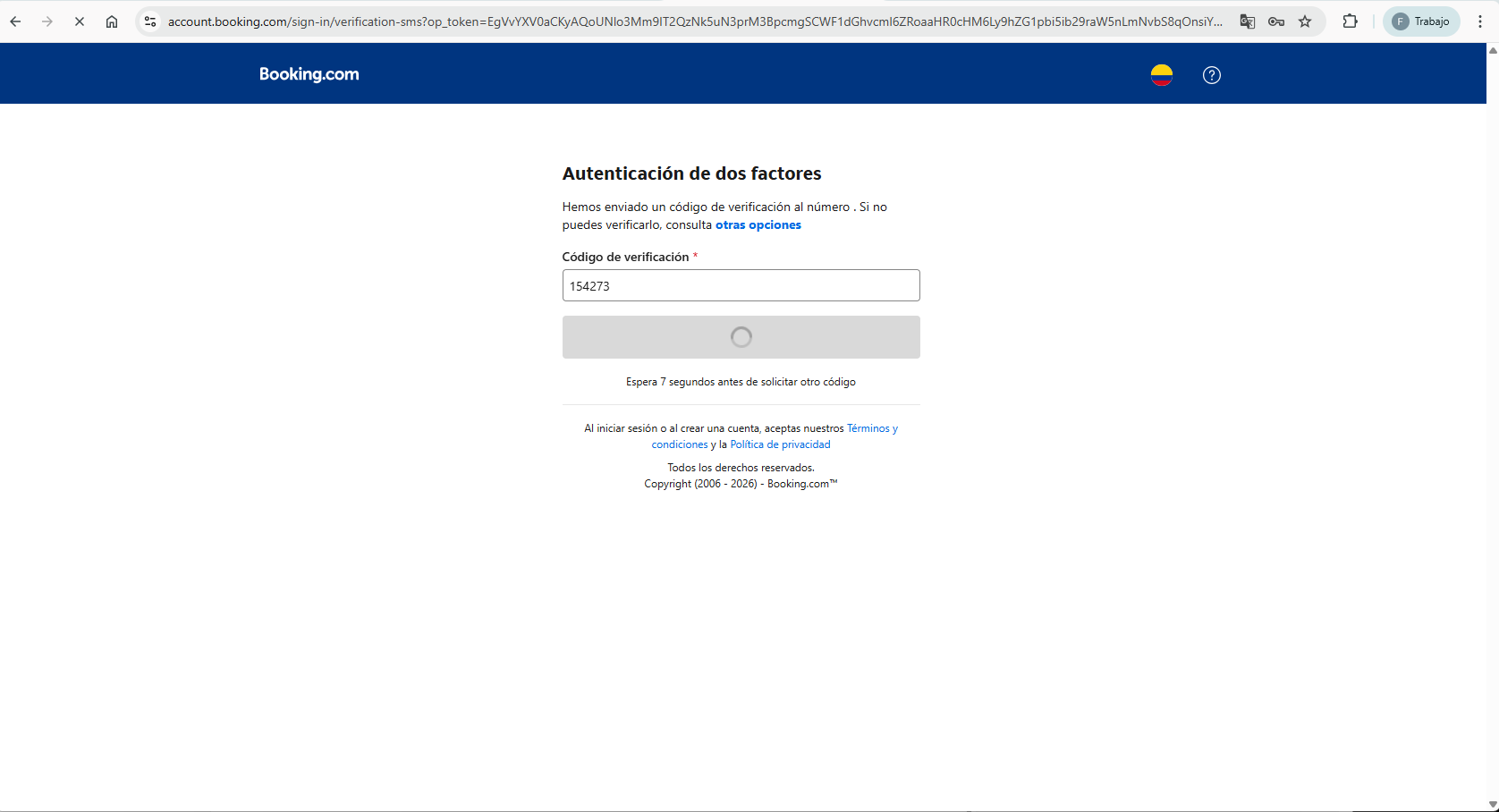
Y con el nombre del huésped, se busca en la plataforma el caso:
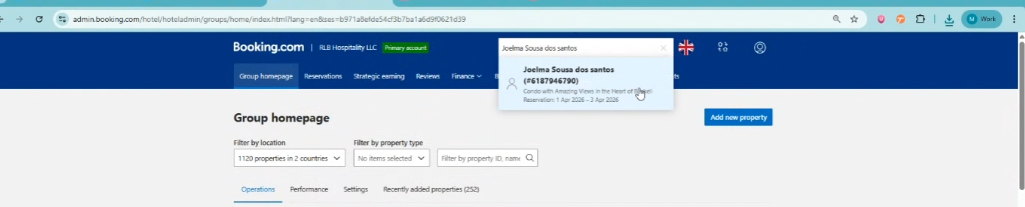
Recordatorio: Se tienen 14 dias para hacer el reclamo frente a la plataforma.
Se da click en File a claim
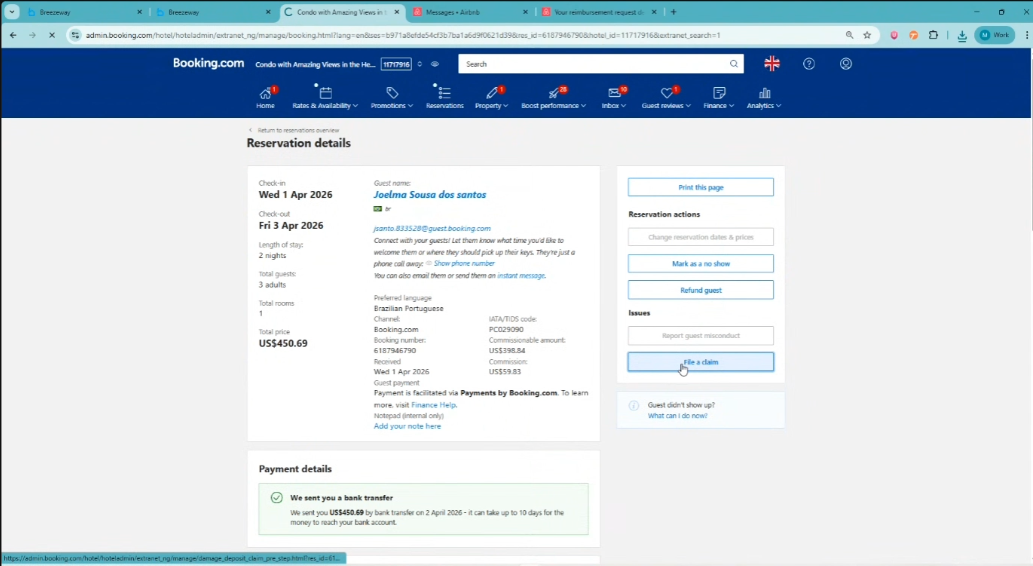
Se baja al final de la página, se aceptan los Términos y se presiona Make a claim:
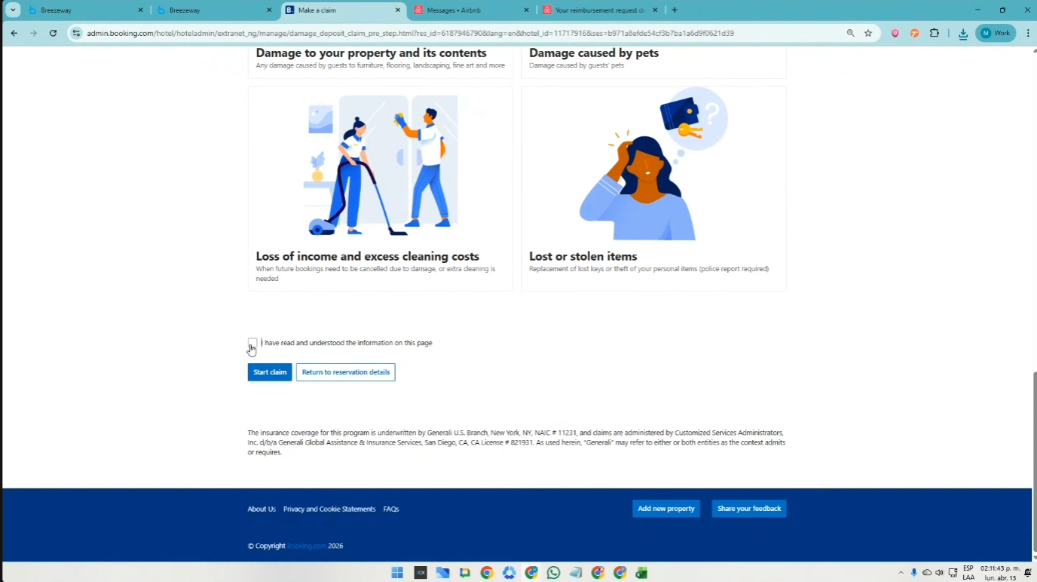
y se abre la pestaña, para ejecutar el reclamo:
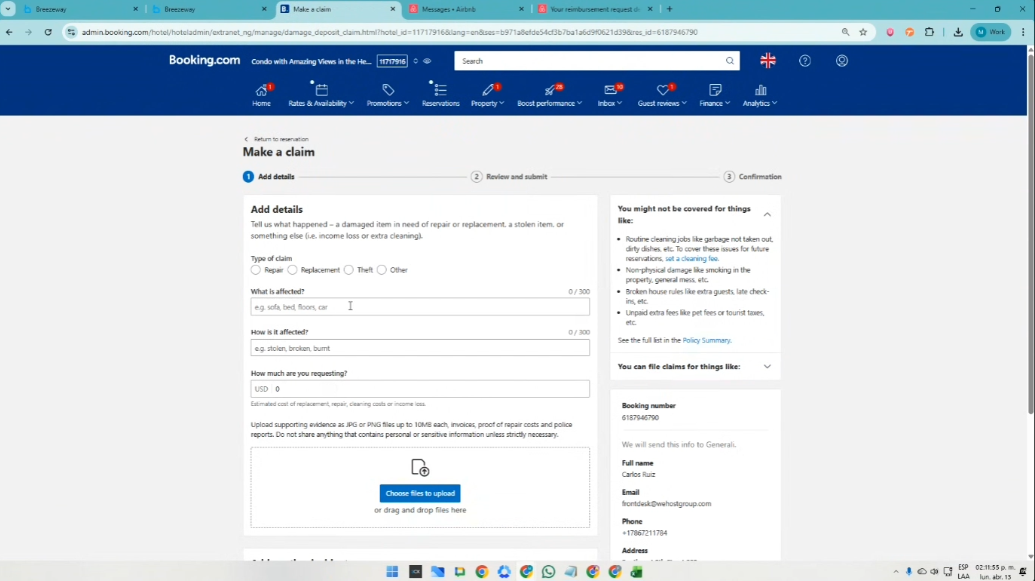
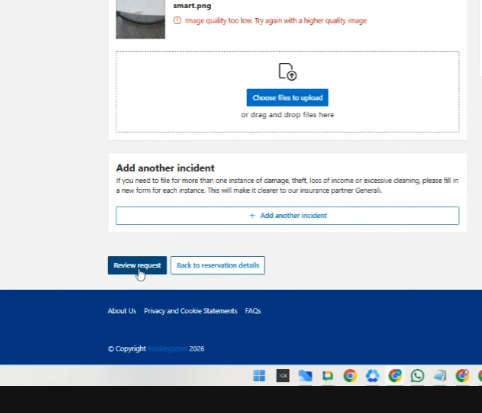
Se sube la info que se encuentra registrada en el caso de la plataforma Breezeway
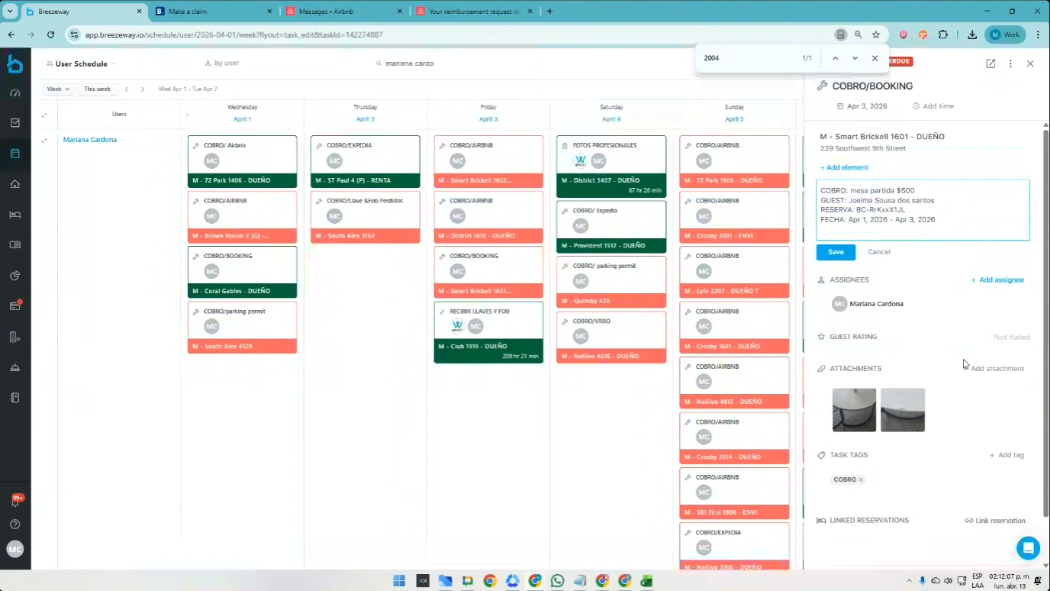
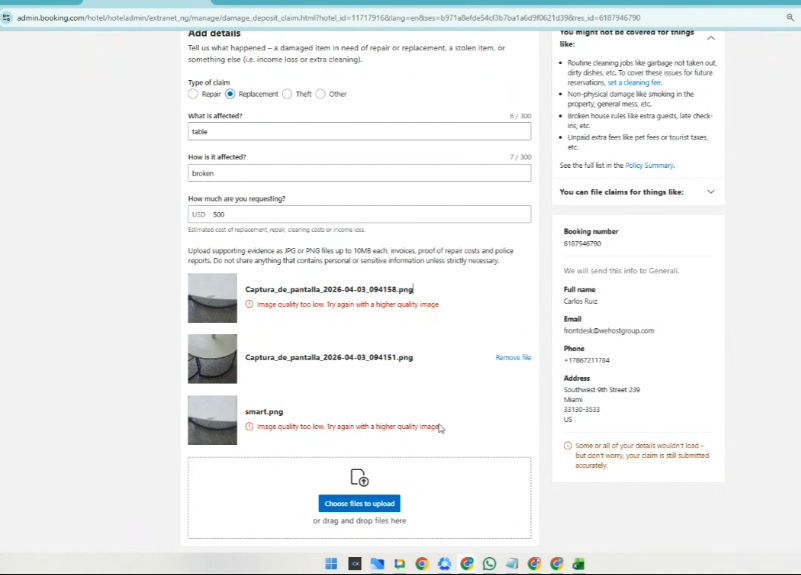
Cuando esta finalizado, se presiona Review request:
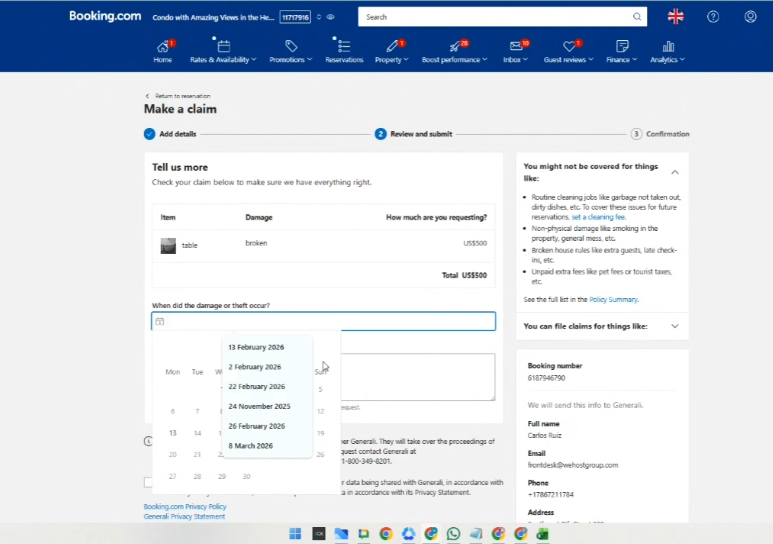
Se coloca la fecha en la que ocurrió el daño:
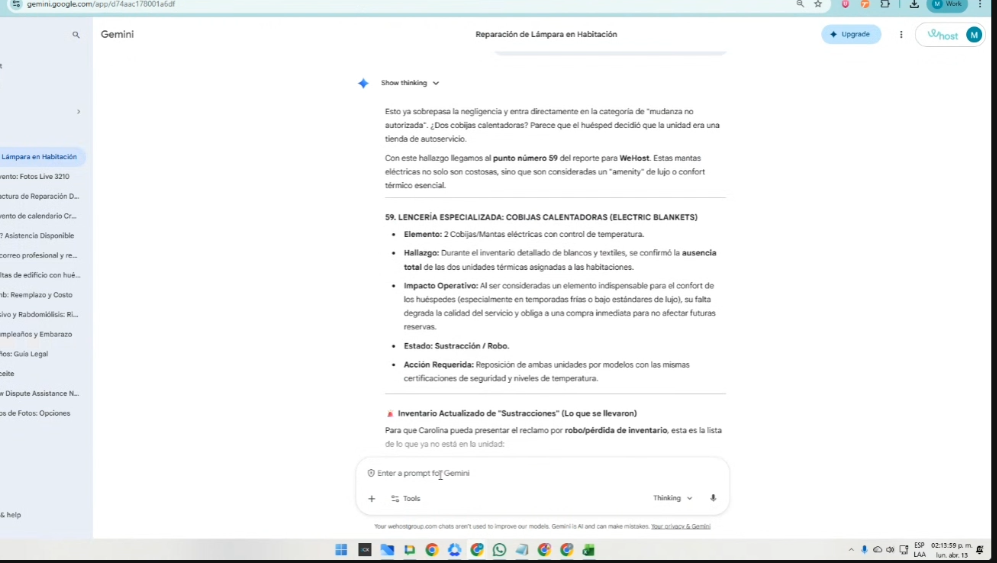
Y para la descripción del daño, se recomienda usar Inteligencia Artificial para ser muy coherentes y precisos en el texto, donde se acentúe que el daño es provocado por el huésped.
De ese cuadro, se deben hacer las modificaciones en:
- Fecha de salida de la unidad
- Datos del guest
- Contexto o descripción del problema o escalamiento
- Valor a cobrarse
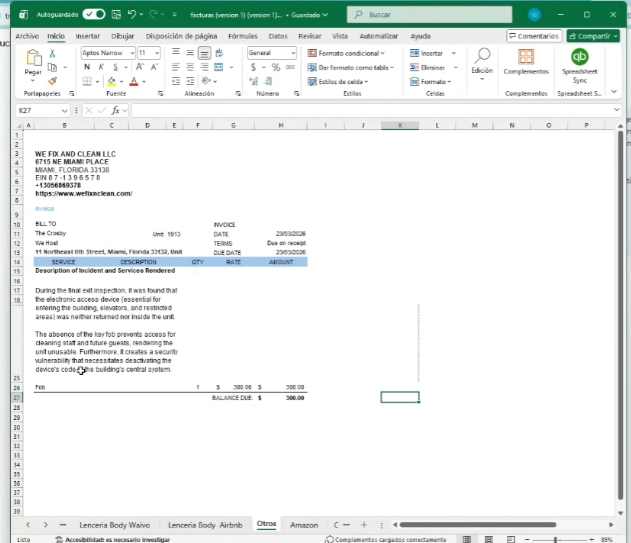
Posterior a esto, se copia el formato en la página y se pone la misma descripción en el recuadro:
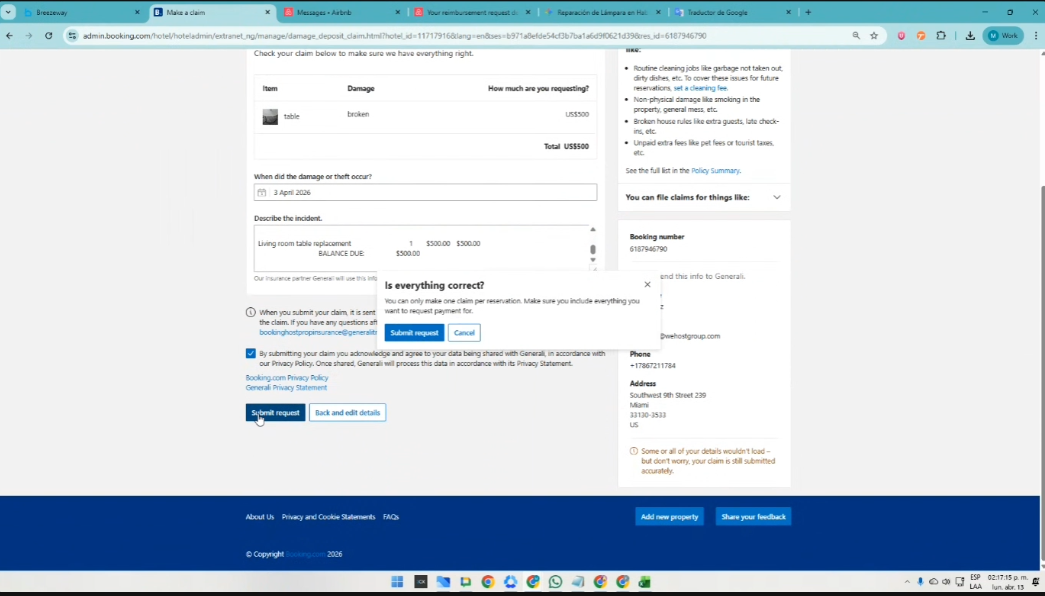
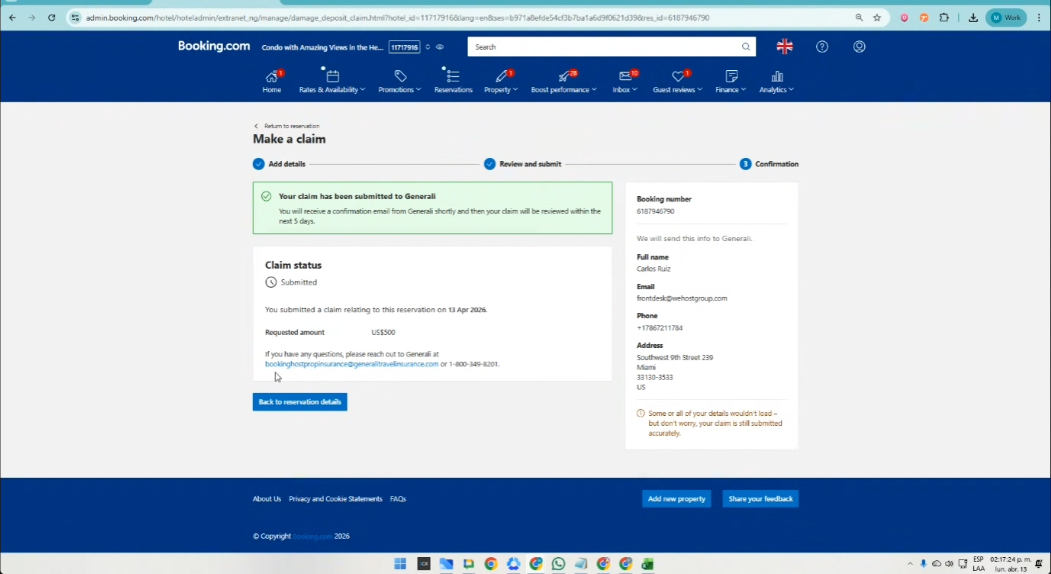
Con el correo que aparece en azul (señalado con la flecha), se copia y se pega en el correo, para validar
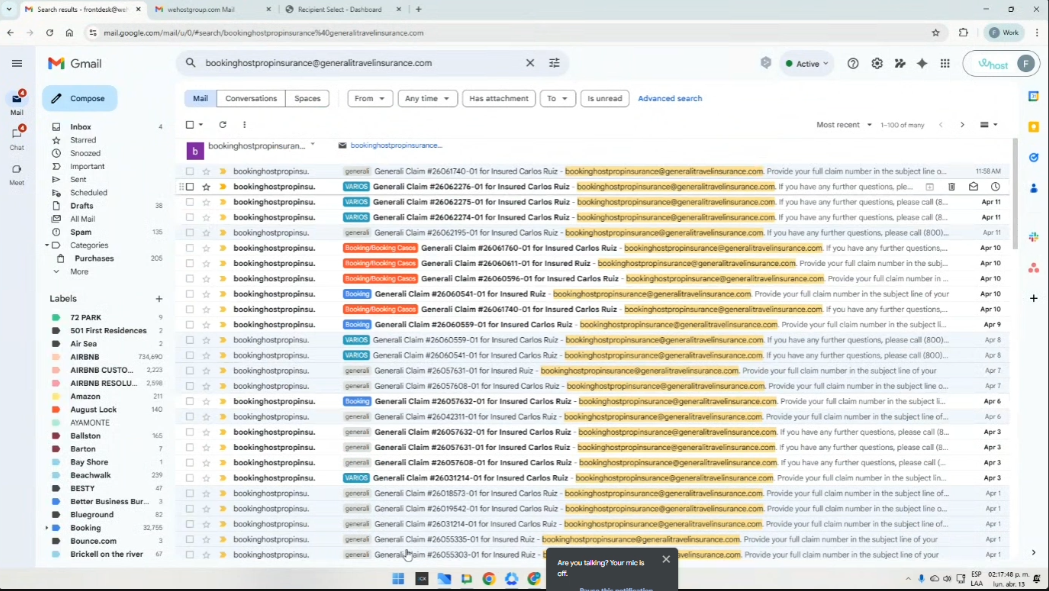
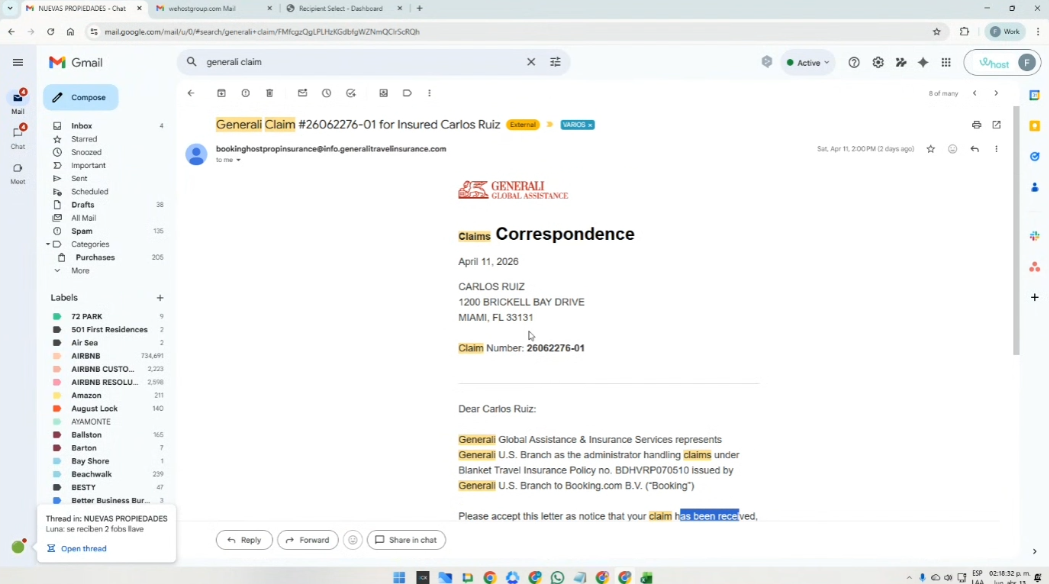
o poniendo el Labol: generali Claim también se encuentra.
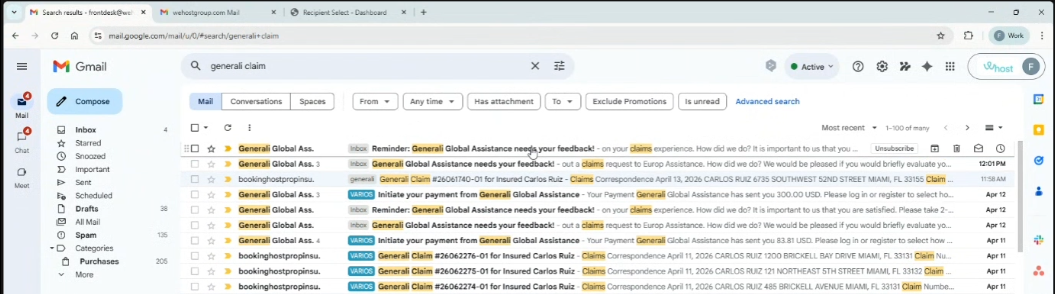
y asi aparece el reporte del cobro
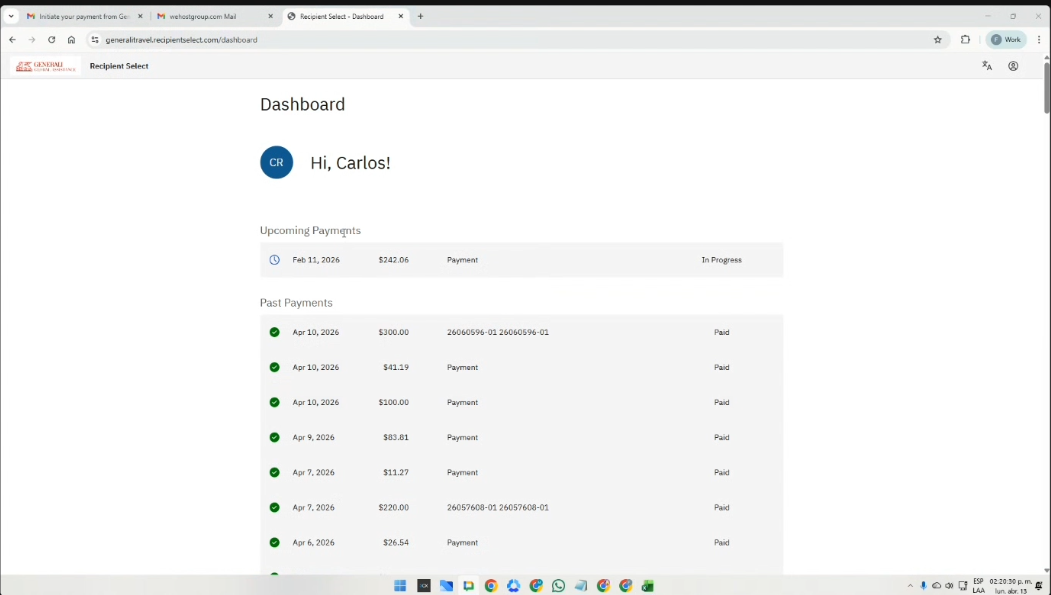
https://generalitravel.recipientselect.com/dashboard
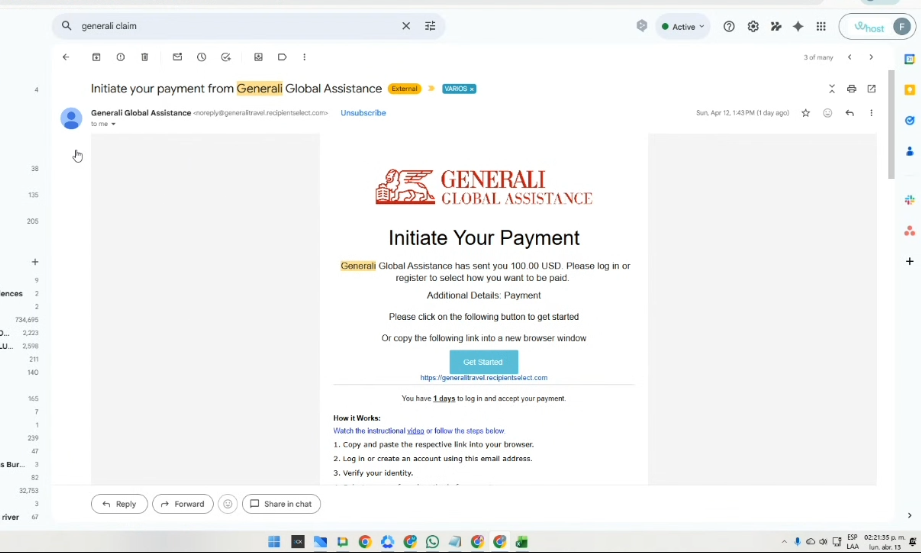
Por esa página se puede ver los pagos que se generan (se tienen 3 días para aceptar estos pagos)
o se puede ver ese pago al correo:
🔴6. Refunds Booking
::::::::::::::::::::::::::::::::::::::::::::::::::::::::::::::::::::::::::::::::::::::::::::::::::::::::::::::::::::::::::::::::::::::::::::::::::::::::::::::::::::::::::::::::::::::::::::::::::::::::::::::::::::
Los siguientes, son los archivos soporte de los procesos descritos anteriormente:
The Excel file contains standardized templates for linking the invoices that must be used in each case:
The following recordings contain the official handovers for each procedure, in order to ensure continuity of each assigned activity:
Part 1:
https://drive.google.com/file/d/16jUWNWSTiDomhpLszzc3aqdHe5uDTsU5/view?usp=sharing
Part 2:
https://drive.google.com/file/d/16jUWNWSTiDomhpLszzc3aqdHe5uDTsU5/view?usp=sharing